A Resume Builder That Works With Your AI - Free
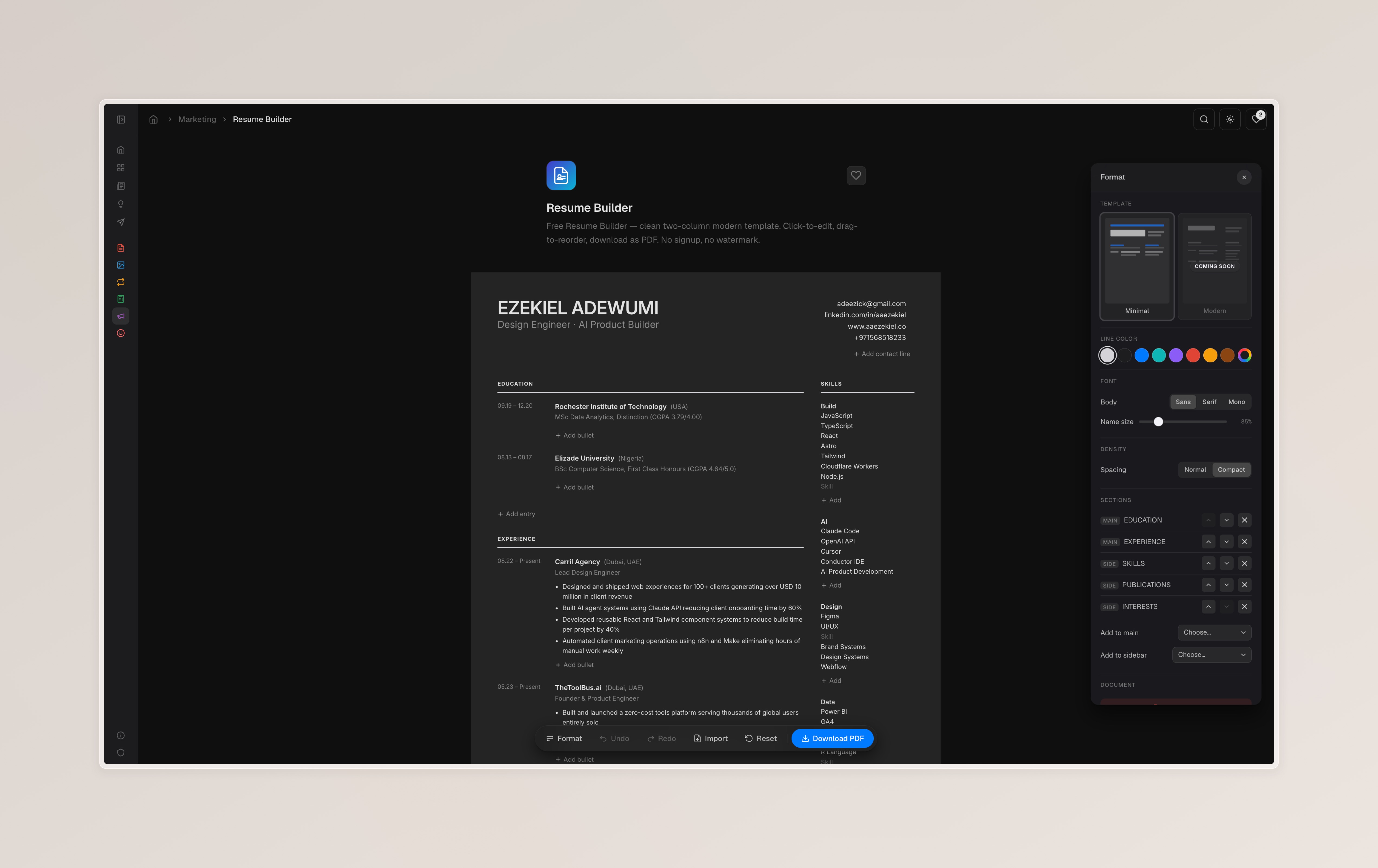
Most “free” resume builders are either gated behind an email signup, watermark the PDF, force you into a stock template, or all three. The few that don’t tend to look like they were designed in 2009. We built Resume Builder on TheToolBus to fix that — a clean, two-column resume editor that lives in your browser, exports a single-page A4 PDF, and works directly with the AI you already use.
You click a field on the resume, type, and download. That’s it. There is no form panel pretending to be the document. No signup. No watermark. No paywalled “premium” templates. The export is a real PDF at A4 dimensions — the same paper the rest of the world prints on.
This post covers everything the tool does and how to use it. If you just want to build a resume right now, open the tool.
Why We Built It
Three things kept frustrating us about every other free resume builder:
You fill in a form, you do not edit a resume. The classic UX is a panel of input fields on the left and a tiny preview on the right. You type into “Job Title” and watch the preview update — except the preview never quite shows the actual layout, and exports often look different from what you saw on screen. We flipped that. The resume is the interface. You click on the role, you type, you see the change at full size in real time.
The PDF is never quite the right size. Free tools commonly export at letter or some custom dimension that does not match the paper your printer expects. International users particularly suffer here. Our export is a real A4 portrait at 595×842 PostScript points (210×297 mm), the global standard, generated client-side using jsPDF so it never leaves your machine.
You start from a blank canvas every time. Most people already have a resume — somewhere — and rewriting from scratch is the worst part of updating it. We solved this with AI Import: copy a prompt, paste it into Claude or ChatGPT with your existing resume or LinkedIn text, and paste the AI’s output back into the tool. Your resume materialises in the editor in five seconds.
Every Feature
Click-to-edit Resume
Every field on the resume is contenteditable. The name, tagline, contact rows, dates, organisations, locations, roles, bullets, skills, interests — all of it. Click any text, the cursor lands where you clicked, you type, the layout updates immediately. There is no separate “edit mode.”
Two-column Modern Template
The default template is a clean two-column layout: experience and education on the left, skills and interests on the right, name and contact at the top. The line colour under section titles is customisable (gray by default — neutral and printer-friendly). The font defaults to Geist; you can switch to a system serif or monospace from the inspector.
One-click A4 PDF Export
Pressing Download PDF (or ⌘D) generates a real A4 portrait PDF and saves it to your downloads folder. The export uses html2canvas at 3× scale for sharp text, then writes a single-page A4 document via jsPDF. If your content is just slightly over a single page, the export auto-fits to one page so you don’t get an awkward second page with two stranded lines on it.
AI Import (Claude, ChatGPT, anything)
This is the feature we are proudest of. Click Import, then Copy prompt. Paste that prompt into Claude or ChatGPT with your existing resume text, LinkedIn export, or even a free-form description of your background. The AI returns formatted markdown that the tool understands. Paste it back into the import box, click Import, and your resume populates in the editor instantly.
The prompt is engineered to produce exactly the format our parser expects — uppercase section titles, em-dash separators, bold date ranges in abbreviated month and four-digit year form (for example Jan 2020 – Present), italic roles, plain-text contact rows, no markdown link syntax. It also instructs the AI not to invent details when fields are missing.
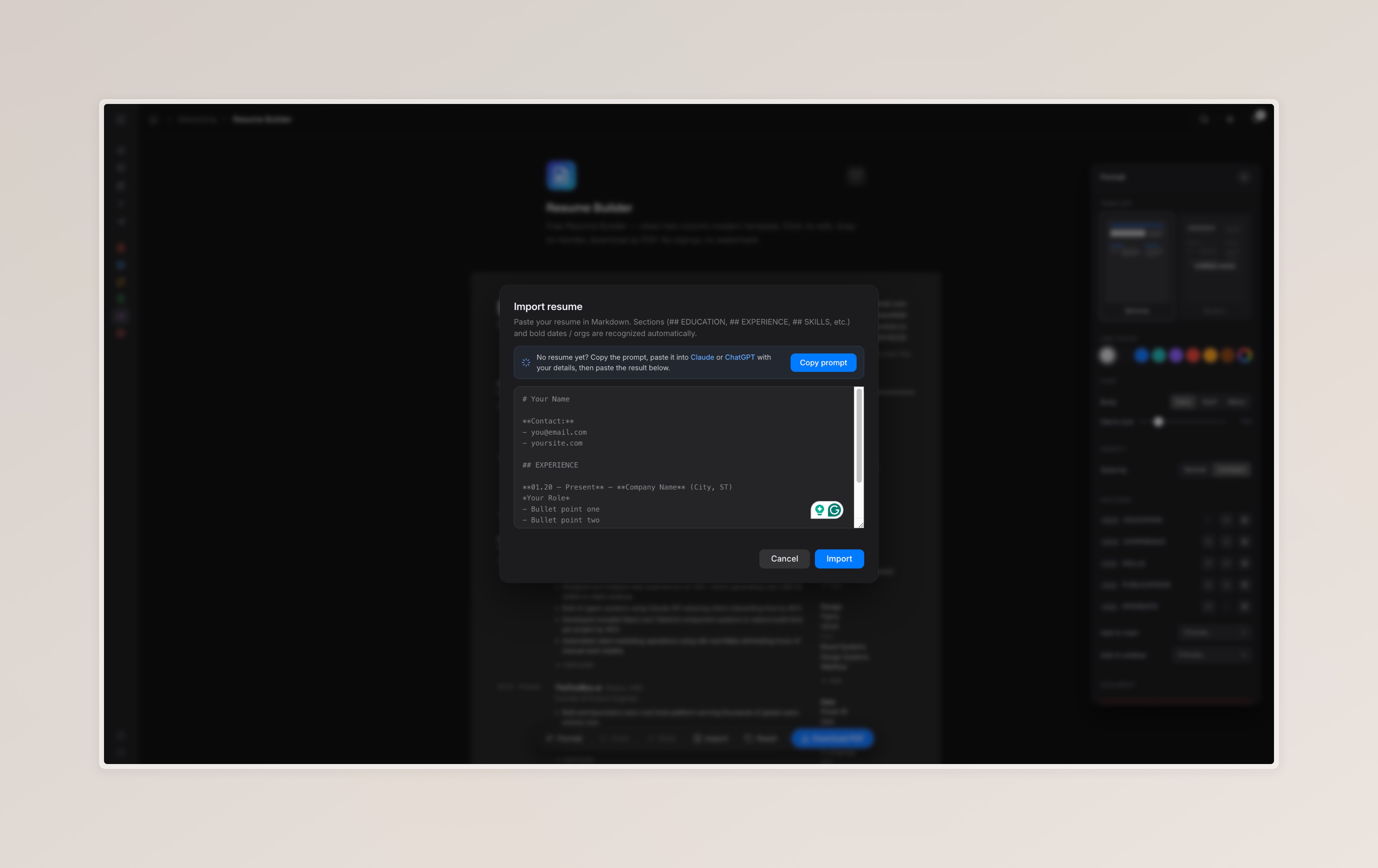
The reason this approach works so well: you do not pay us to use AI. You bring your own AI subscription (or use the free tier of Claude or ChatGPT) and the tool stays free. Privacy stays with you — your resume content never touches our servers.
Undo / Redo
A 50-step history covers every change you make — text edits, format tweaks, adding or removing items, even AI imports. Use ⌘Z to undo and ⌘⇧Z (or ⌘Y) to redo. Buttons in the bottom action bar work too, with disabled states when there’s nothing to undo or redo.
The history is debounced so a single typed word counts as one history step, not every keystroke. Hit ⌘Z and you are back to where you were before you started typing the word.
Plain-text Paste
Paste content from Google Docs, Notion, Word, or anywhere else and it adopts the resume’s typography immediately. No leftover purple highlights, oversized headings, or mismatched fonts — everything pasted shows up in the resume’s own style. This sounds small but is the difference between a usable resume and one that looks like a forensic snapshot of three different documents stitched together.
Format Inspector
The right-side Format panel gives you control over the document without leaving the canvas:
- Template — Currently “Minimal”; “Modern” is coming soon. Both are A4-aspect, two-column, professional layouts.
- Line colour — Eight curated swatches plus a custom-colour picker, controlling the line beneath section titles. Gray is the default for a neutral, printer-safe look.
- Font — Sans (Geist), Serif (Iowan / Palatino), or Mono. Affects the entire document.
- Name size — A slider from 70% to 150%. Default is 70% — large but not the cartoon-billboard size most builders default to. Tune it to fit the real estate you have.
- Density — Normal or Compact. Compact tightens spacing for resumes packed with experience.
- Sections panel — Reorder sections (up/down arrows), remove them, or add new ones to either the main column or the sidebar. Dated entries (Experience), grouped lists (Skills), and simple lists (Interests) are all supported.
Auto-save
Everything is saved to localStorage as you edit. Close the tab, come back tomorrow, your resume is exactly where you left it. A small “Saved” toast confirms each save without getting in the way.
Add and Remove Inline
Hover any item, bullet, skill group, or section title and a delete button appears next to it. Clicking it removes only that item — the rest stays untouched. Add buttons appear at the bottom of each list (“Add bullet”, “Add entry”, “Add skill group”). No menus, no deeply nested settings panels.
Reset
A clean reset is two clicks: Reset → Confirm. Useful when you want to start a new resume from the template defaults without manually clearing every field.
How to Build a Resume in Under Five Minutes
The fastest path:
- Open Claude or ChatGPT in another tab.
- Click Import in the resume builder, then Copy prompt.
- Paste the prompt into the AI tab, followed by your existing resume text (LinkedIn export, a Word document, even a free-form summary of your background).
- Copy the AI’s response and paste it into the resume builder’s import box.
- Click Import. Your resume materialises.
- Tweak anything that needs polish — the AI is good but not perfect.
- Download PDF.
That is genuinely the entire flow. Most users finish in under five minutes. If you do not have an existing resume, write a paragraph in the AI describing your background and ask it to format that into the resume markdown spec — same result.
Manual Building Path
If you would rather build directly:
- Click your name at the top, type your name.
- Click the tagline below — defaults to “Designer”, change to your role.
- Click each contact row to edit (email, website, LinkedIn). The plus icon adds more rows.
- Click section content (dates, company names, locations, roles, bullets) to edit each.
- Use + Add bullet, + Add entry, + Add skill group to grow each section.
- Open the Format inspector to tweak typography or remove unused sections.
- ⌘D to download.
Design Principles
The resume canvas is locked to A4 aspect at 794px wide on screen — exactly what fits on the printed page. Padding is uniform at 44px on all four sides. Section title text is 10px and the same colour as body text (no decorative blue), with a thin grey rule below it. Body bullet text is 12px, matching the skill items, so the visual rhythm between left and right columns stays consistent. Org names get 13px — the only typographic emphasis besides the name itself.
These choices are deliberate. Resumes get scanned for six seconds before a recruiter decides to read further. The fewer typographic distractions there are, the more attention goes to the content. The line colour picker exists so people can customise without breaking the system — pick gray (the default), and the document reads as a serious professional resume. Pick orange, and it pops without becoming illegible.
Tips for a One-page Resume
The export auto-fits to a single page, but a resume that is designed to fit one page reads better than one that is squeezed onto one. Three rules:
- Three to five bullets per role, not seven. Each bullet should be an outcome — “increased conversion 18%”, “shipped flagship feature” — not a job description.
- Limit to four or five skill categories. Listing twenty technologies dilutes signal. Pick the categories that actually match the job you are applying for.
- Drop sections you do not need. Not everyone needs Leadership, Interests, Languages, Awards. The Format inspector lets you delete sections in two clicks.
What’s Next
We are working on a second template (“Modern” — sleeker spacing, more whitespace), a cover-letter export that pairs with the resume, and the ability to save multiple resumes side-by-side in localStorage so you can keep variants for different roles. None of this changes the core promise: free, no signup, no watermark, A4 PDF export.
Try it: Resume Builder on TheToolBus.